The following guide is only intended to troubleshoot the Activio client (the program running on a device in a training room). Please take it easy and follow the guide step by step, if you are unsure about any of the steps, you are always welcome to contact our support and we will troubleshoot together.
Activio program does not start
- Check that the computer has its power cord plugged into an electrical outlet that has power
- Make sure all cables are connected and secured to the computer
- The Activio computer should be connected to at least one external display
- Also make sure that the screen is in turn connected to an electrical outlet that has power
- Press the computer’s power button
- Once the computer has started, the Activio program should start by itself
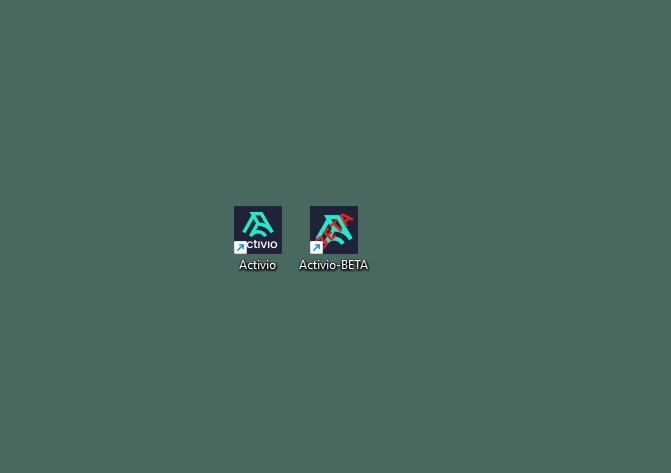
- If it does not start by itself, please click on the Activio icon on the desktop
Example of what the Activio program icon might look like
Activio is not working
- Start by shutting down the system (See“Shutting down or restarting Activio” for instructions)
- When the system is switched off, check that all cables are plugged in and no cables are loose
- Also double check that any WASP or Bluerobin device is connected correctly.
- Try to restart the system, when restarting also check that there are no updates. If there are any updates please install them
WASP is not working
- If you have problems getting WASP/ANT+ devices to appear in Activio, start by closing the Activio program.
- Once the Activio program is turned off, you will need to restart the WASP receiver by disconnecting the power.
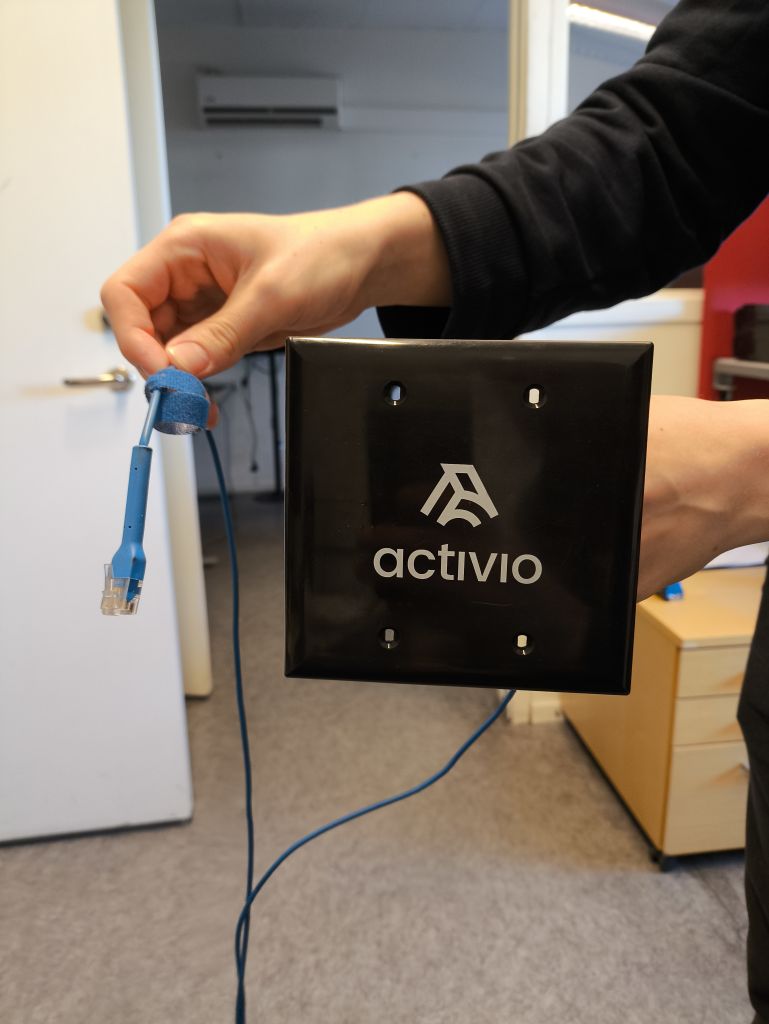
- Follow the TP cable from the computer to the WASP receiver, in some cases TP can go through a switch and then go on to the WASP receiver. See the picture below for an example of how the cable may look. When you have found the TP cable that goes to the WASP receiver, loosen the cable carefully. By disconnecting the power, the WASP receiver resets itself, which solves most problems that may occur with WASP.
Blue Robin does not work
- If you have problems getting Bluerobin devices to appear in Activio, start by closing the Activio program.
- Once the Activio program is turned off, you need to restart the Bluerobin receiver by turning off the power.
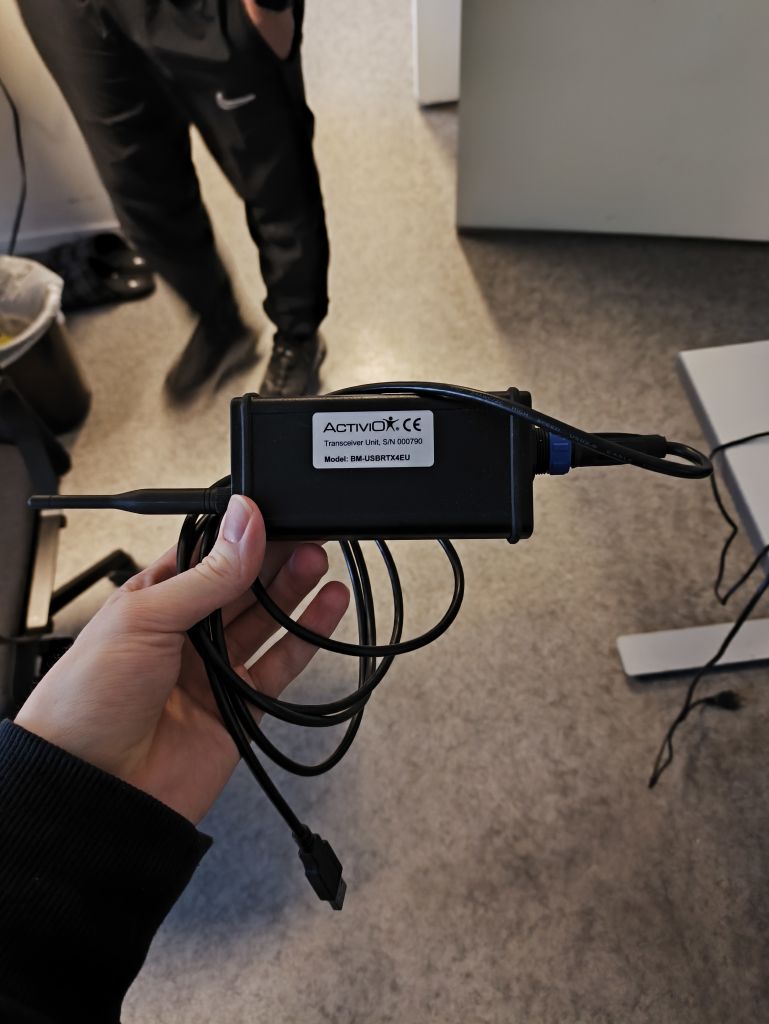
- The Bluerobin is connected using a USB cable from the Activio computer to the Bluerobin receiver.
- Once you have found the USB cable that runs between the Activio computer and the Bluerobin. Carefully disconnect the USB cable so that the power to the Bluerobin receiver is cut off.
- Wait 15 seconds and then reconnect the USB cable
Example of what the Bluerobin receiver might look like.